



Introduction: Enhancing Secure Access with Azure Bastion
In the contemporary realm of cloud computing, ensuring secure access to virtual machines (VMs) within Azure environments stands as a critical priority for organizations globally. Conventional methods of remote access often entail risks, such as exposing VMs to the public internet or managing intricate VPN setups, resulting in heightened security concerns and operational complexities.
Introducing Azure Bastion – an innovative tool integrated into the Microsoft Azure platform with the precise aim of streamlining and strengthening remote access to Azure Virtual Machines. Acting as a secure gateway, Azure Bation enables effortless and encrypted connections via RDP/SSH to VMs residing within an Azure virtual network, effectively eliminating the need to expose them to external networks.
In this blog, we’ll walk you through the steps for creating and effectively employing Bastion in the Azure environment.
Creating Azure Bastion
Lets look at the steps to create a Bastion in Azure.
Go to Azure portal and search for Bastion
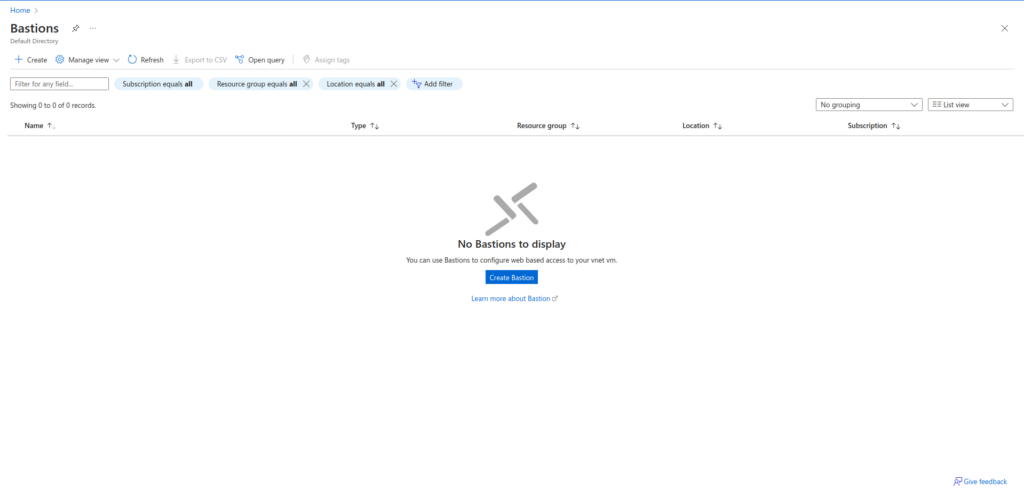
Click on Create Bastion.
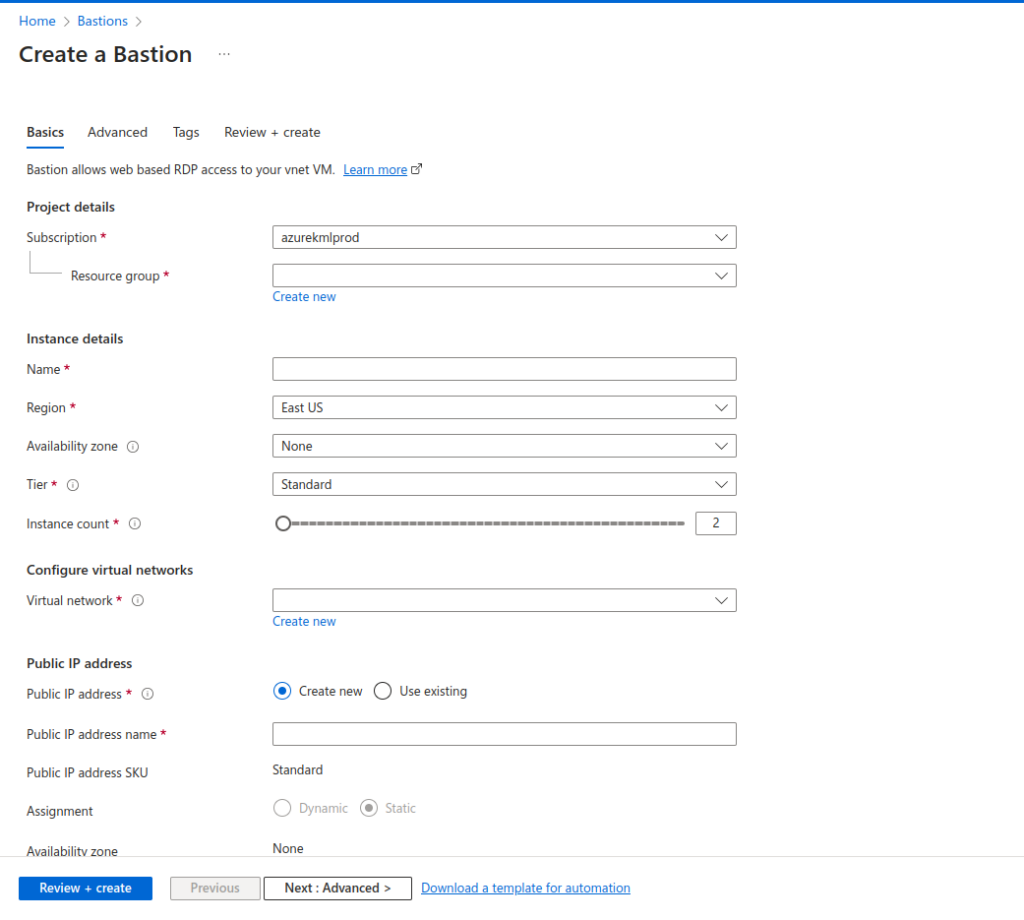
Enter all the relevant details to create a Bastion.
Select the subscription and Resource Group within the subscription.
In the Instance details, you need to specify the name of the Bastion to identify it while connecting to any VM. You can select any region and AZ. Bastion supports 3 Tiers: Developer, Basic and Standard. You can select any of these tiers that best suits your need. I will be choosing Basic Tier.
[Note: Developer Tier won’t allow connecting to Linux VM using RDP and connecting to Windows VM using SSH. You won’t be able to upload/download files. You can only connect to target VMs in the same Virtual Network.]
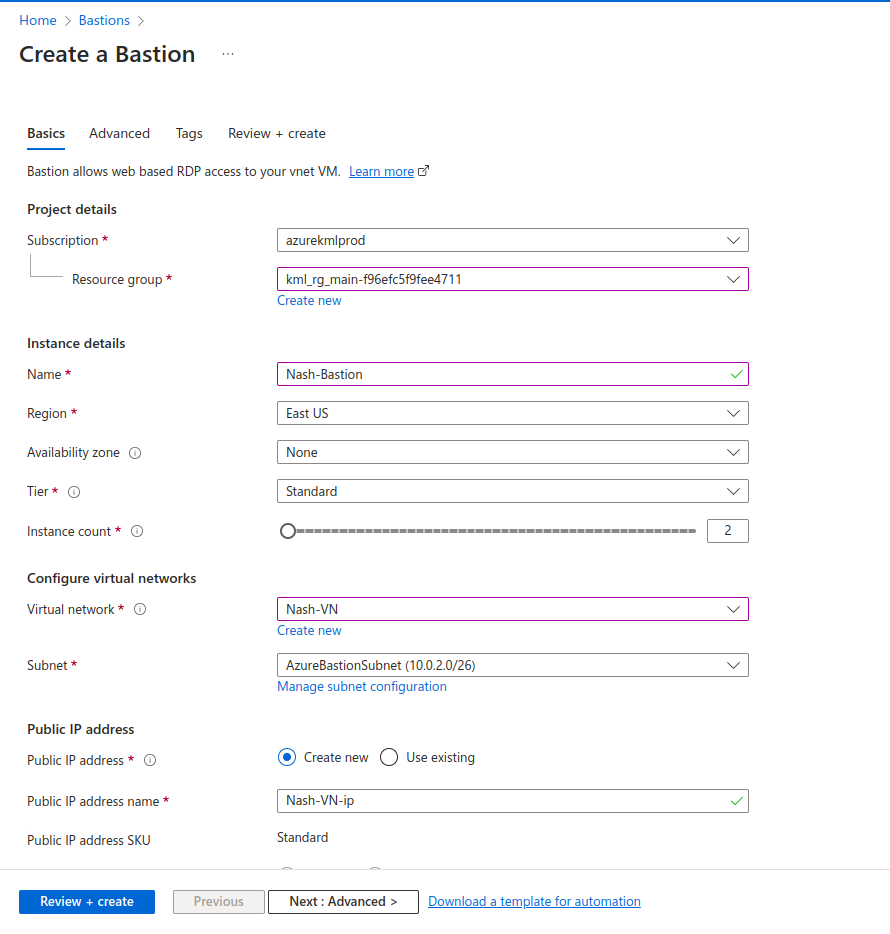
Creating a Virtual Machine
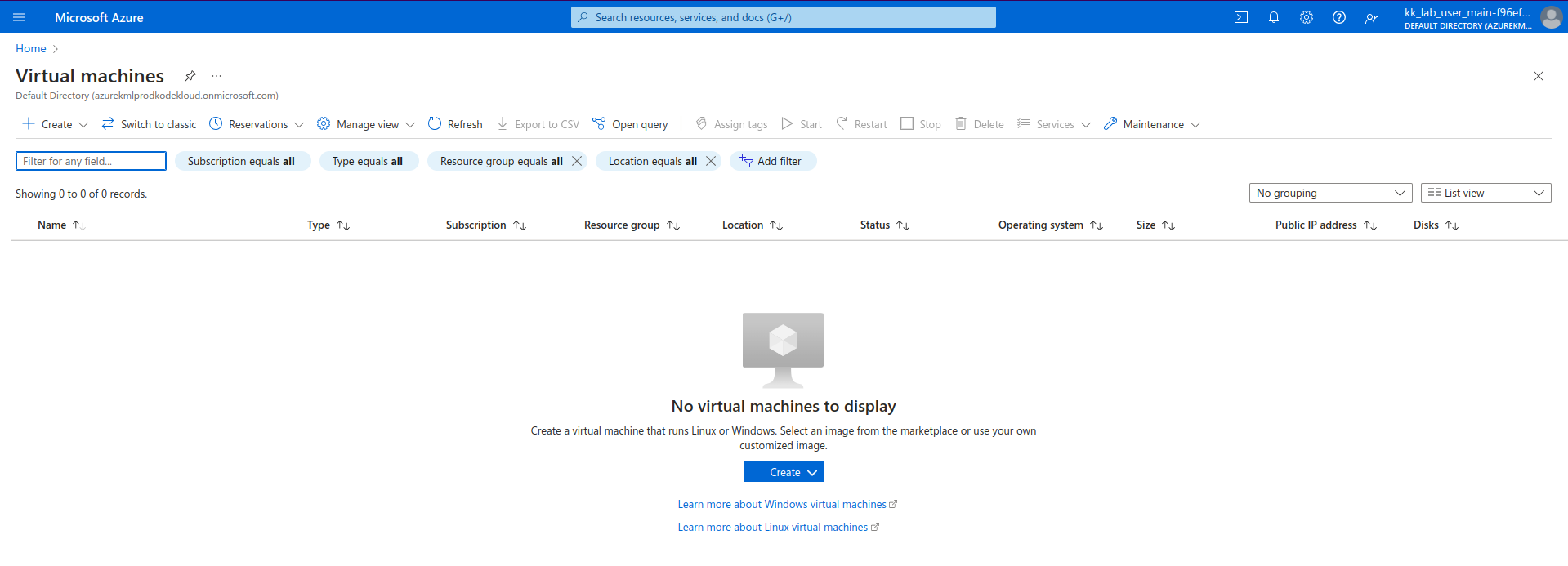
Click on Create.
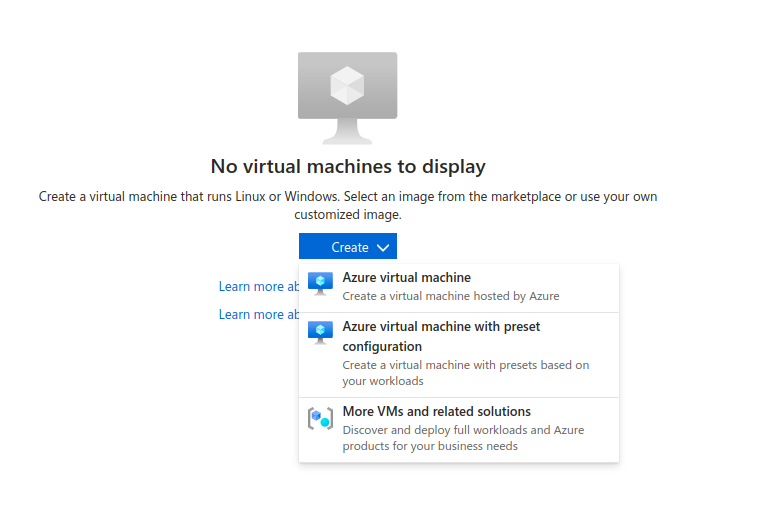
Click on Azure Virtual Machine.
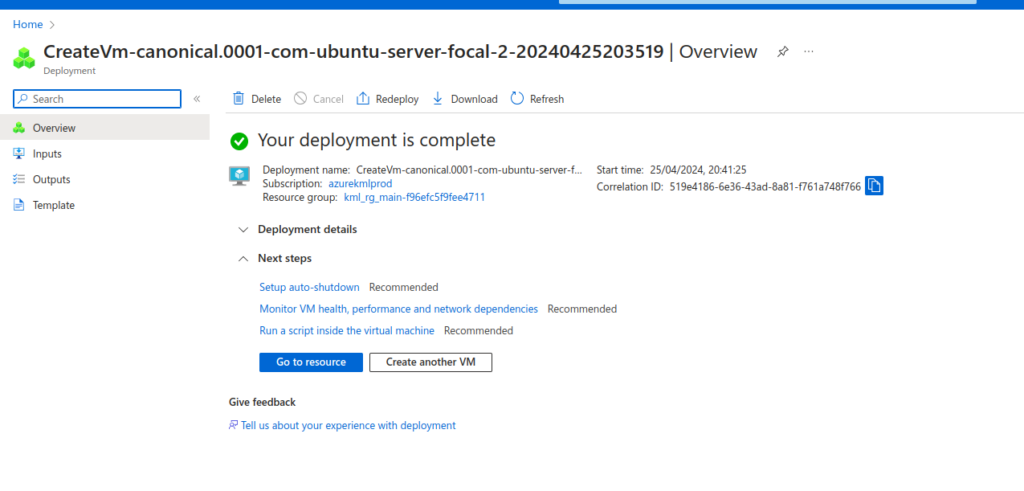
The creation is complete. You can now Go to resource.
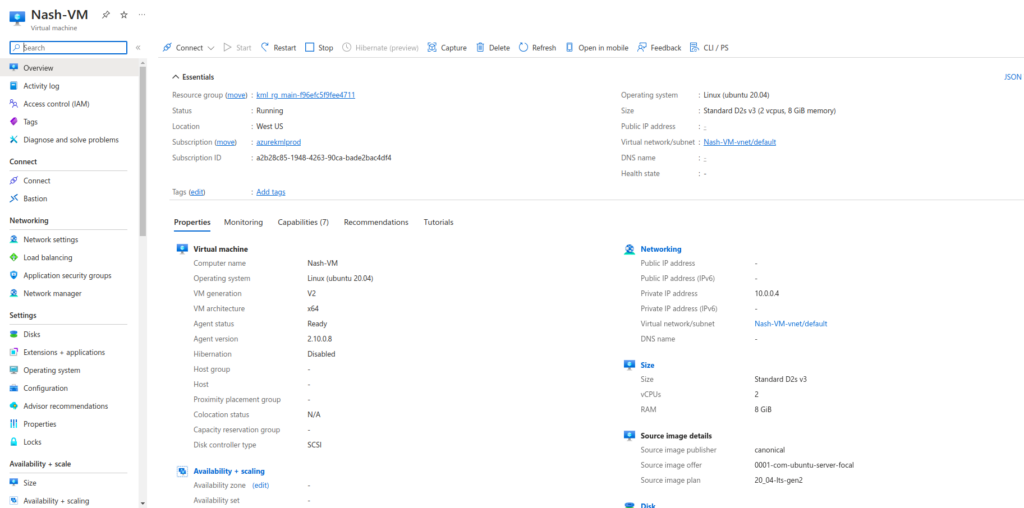
As you can see, we have not attached any Public IP with this machine.
Connecting to the Azure Virtual Machine using Bastion
Select the VM you need to connect to.
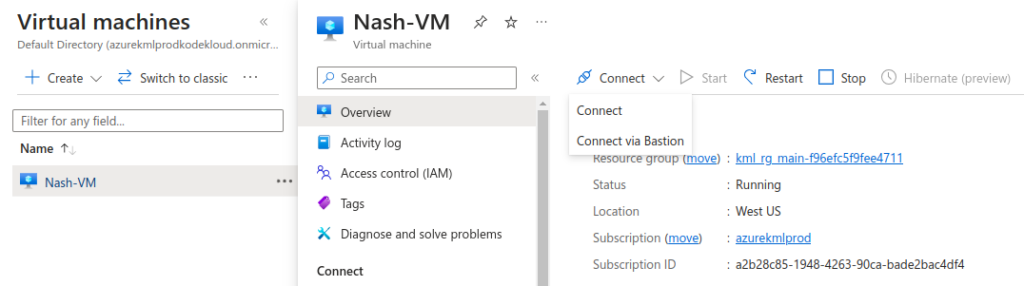
Click on Connect > Connect via Bastion
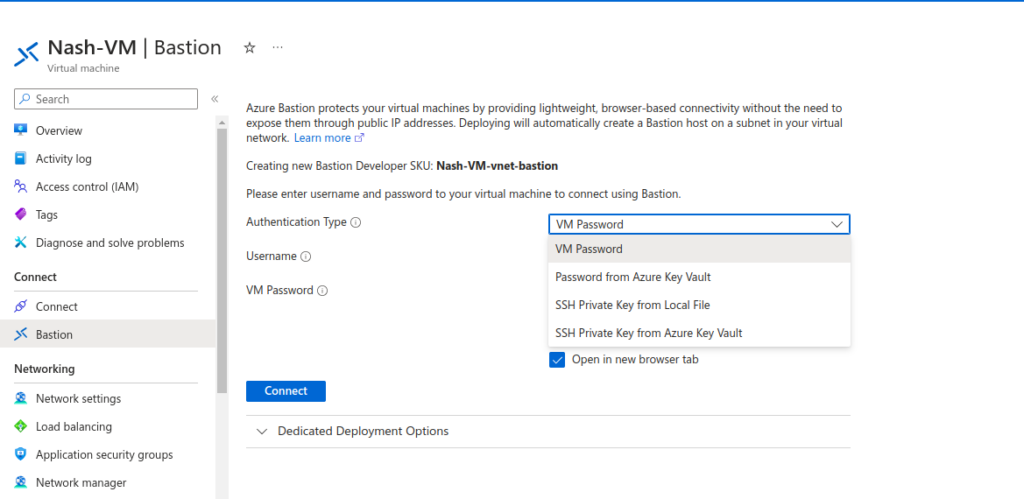
You can select any Authentication Type. I will use the SSH Private Key from Local File option to connect to my Virtual Machine.
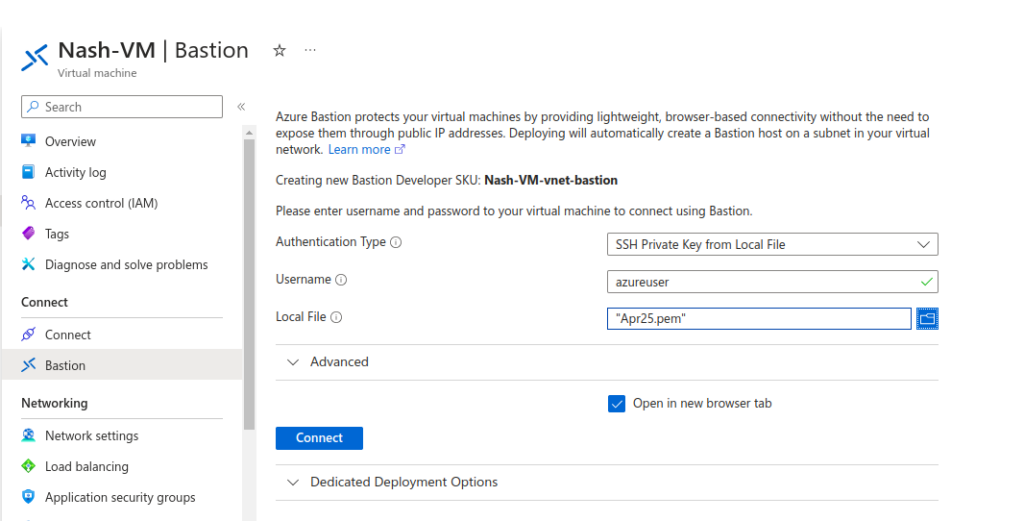
Click on Connect. It will take you to a new tab with the CLI access to the Virtual Machine.
This is how you can create and utilise a Bastion in Azure Cloud. If you have any questions/feedbacks regarding this blog, I am reachable at vidushi.bansal@nashtechglobal.com. You can find more of my blogs here.