


In this era robust authentication systems have become essential for safeguarding web applications. Microsoft Entra ID (formerly known as Azure AD) offers a secure, scalable, and easy-to-implement identity management solution for modern web applications. This blog explores everything you need to know about web app authentication using Microsoft Entra ID, including its features, benefits, and integration steps.
What is Microsoft Entra ID?
Microsoft Entra ID is an enterprise-grade identity and access management service designed to enable secure authentication and authorization for applications. It is part of Microsoft’s suite of tools for managing identities and forms a critical component of their Zero Trust security framework.
Key highlights include:
- Cloud-first identity management.
- Seamless integration with Azure and Microsoft services.
- Support for modern authentication standards.
Why Authentication Matters in Web Apps
Authentication is the process of verifying a user’s identity before granting access to a web app. Without robust authentication mechanisms, web applications are vulnerable to:
- Unauthorized access.
- Data breaches.
- Identity theft.
Microsoft Entra ID provides a centralized and secure way to authenticate users, ensuring compliance with industry standards and regulations.
Key Features of Microsoft Entra ID
- Single Sign-On (SSO): Users can log in once and access multiple applications without re-entering credentials.
- Multi-Factor Authentication (MFA): Adds an extra layer of security by requiring additional verification steps.
- Conditional Access: Dynamically enforces access controls based on user identity, location, and device health.
- Application Proxy: Enables secure remote access to on-premises applications.
- Identity Protection: Detects and mitigates identity-related risks using AI-driven insights.
Authentication Protocols Supported by Microsoft Entra ID
Microsoft Entra ID supports several industry-standard authentication protocols to cater to diverse application needs:
OAuth 2.0
A widely used protocol for authorization, OAuth 2.0 enables secure token-based access to web resources.
OpenID Connect (OIDC)
Built on top of OAuth 2.0, OIDC adds identity verification, making it ideal for web app authentication.
SAML 2.0
Used for Single Sign-On (SSO), SAML 2.0 enables secure exchange of authentication and authorization data.
Benefits of Using Microsoft Entra ID for Authentication
- Enhanced Security: Advanced features like MFA and conditional access ensure secure authentication.
- Ease of Integration: Microsoft Entra ID integrates seamlessly with a wide range of apps and services.
- Scalability: Handles millions of users effortlessly, making it suitable for enterprise applications.
- Compliance: Helps meet regulatory requirements for data protection and privacy.
- Developer-Friendly: Comprehensive documentation and SDKs simplify implementation.
Setting Up Microsoft Entra ID for Your Web App
1. Creating an Azure Tenant
Sign up for an Azure account and create a tenant for your organization. This tenant acts as the central identity store for users and applications.
2. Create Your Web Application
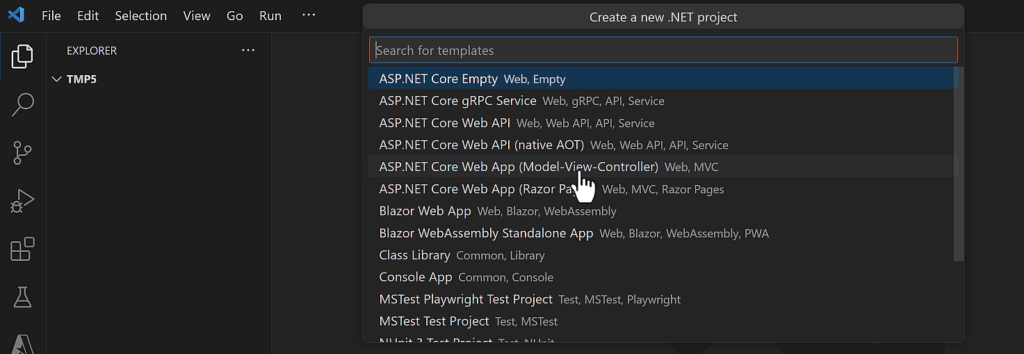
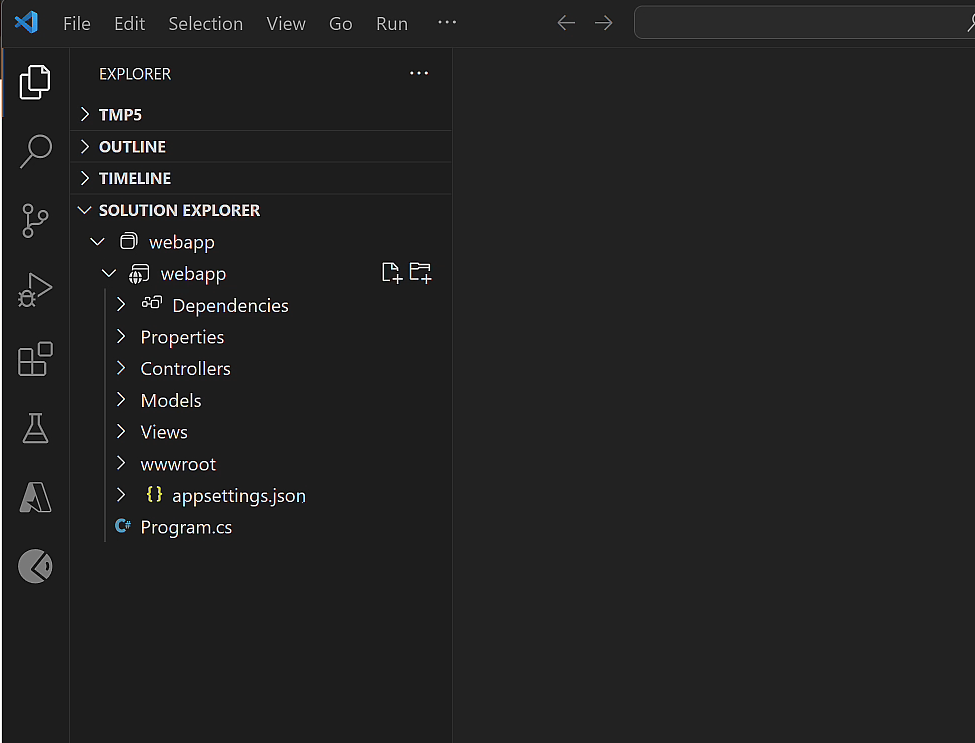
Open Visual studio code and create MVC web application with the default template as shown below
3. Registering Your Web Application
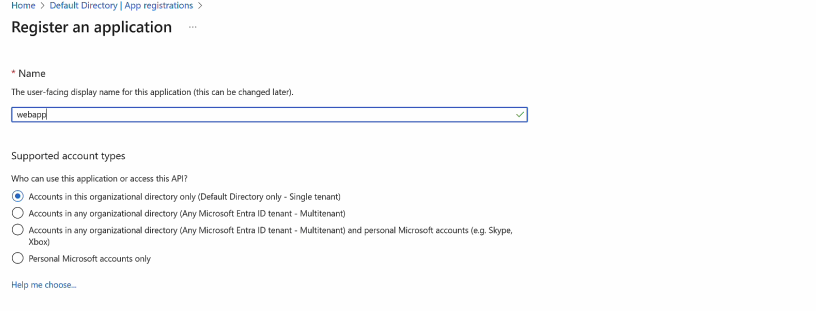
Go to the Azure Active Directory section, and register your web application. This involves:
- Click on App registrations -> New Registration -> Add name of your web application in input box -> click on Register Button
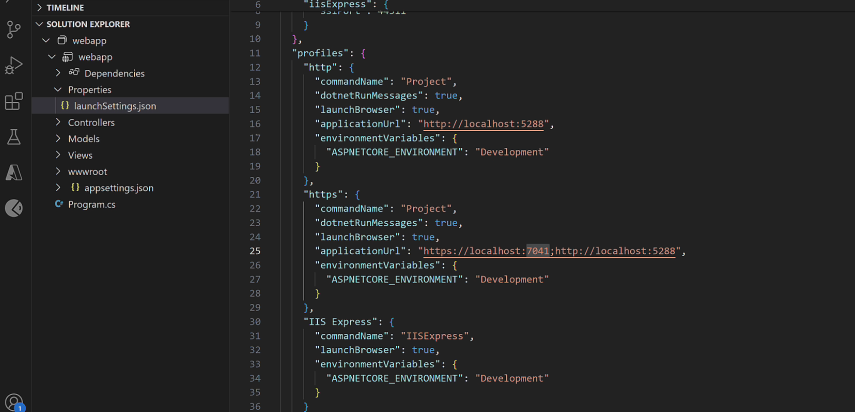
- Now copy applicationUrl from launchSettings.json from your mvc application.
- Open the Web App created in the previous step and click on Authentication from menu. Now click on Add a platform link and choose Web from configure platforms web applications.
- Add Redirect URIs and Front-channel logout URL as shown in the image below and click on Configure button.

4. Configure Your Web Application
- Add following nuget packages:
dotnet add package Microsoft.Identity.Web --version 3.4.0
dotnet add package Microsoft.Identity.Web.UI --version 3.4.0- Add following settings in AppSettings.json file and paste TenantId and ClientId value from web application dashboard.
{
  "AzureAd": {
    "Instance": "https://login.microsoftonline.com/",
    "TenantId": "[Enter the tenantId here]",
    "ClientId": "[Enter the Client Id here]",
    "CallbackPath": "/signin-oidc",
    "SignedOutCallbackPath": "/signout-oidc"
  }
}- Update your application Program.cs as shown below
 var builder = WebApplication.CreateBuilder(args);
            builder.Services.AddControllersWithViews();
            // Add services to the container.
            builder.Services.AddAuthentication(OpenIdConnectDefaults.AuthenticationScheme)
                .AddMicrosoftIdentityWebApp(builder.Configuration, "AzureAd");
            builder.Services.AddRazorPages().AddMvcOptions(options =>
            {
                var policy = new AuthorizationPolicyBuilder().RequireAuthenticatedUser().Build();
                options.Filters.Add(new AuthorizeFilter(policy));
            }
                ).AddMicrosoftIdentityUI();


            var app = builder.Build();

            // Configure the HTTP request pipeline.
            if (!app.Environment.IsDevelopment())
            {
                app.UseExceptionHandler("/Home/Error");
                // The default HSTS value is 30 days. You may want to change this for production scenarios, see https://aka.ms/aspnetcore-hsts.
                app.UseHsts();
            }

            app.UseHttpsRedirection();
            app.UseRouting();
            app.UseAuthorization();
            app.MapStaticAssets();
            app.MapControllerRoute(
                name: "default",
                pattern: "{controller=Home}/{action=Index}/{id?}")
                .WithStaticAssets();

app.Run();- Add following code in the _Layout.cshtml to show and hide Sign In and SignOut buttons.
<ul class="navbar-nav">
  @if (User.Identity.IsAuthenticated)
  {
    <li class="nav-item">
        <span class="navbar-text text-dark">Hello @User.Identity.Name!</span>
    </li>
    <li class="nav-item">
        <a class="nav-link text-dark" asp-area="MicrosoftIdentity" asp-controller="Account" asp-action="SignOut">Sign out</a>
    </li>
  }
  else
  {
    <li class="nav-item">
        <a class="nav-link text-dark" asp-area="MicrosoftIdentity" asp-controller="Account" asp-action="SignIn">Sign in</a>
    </li>
  }
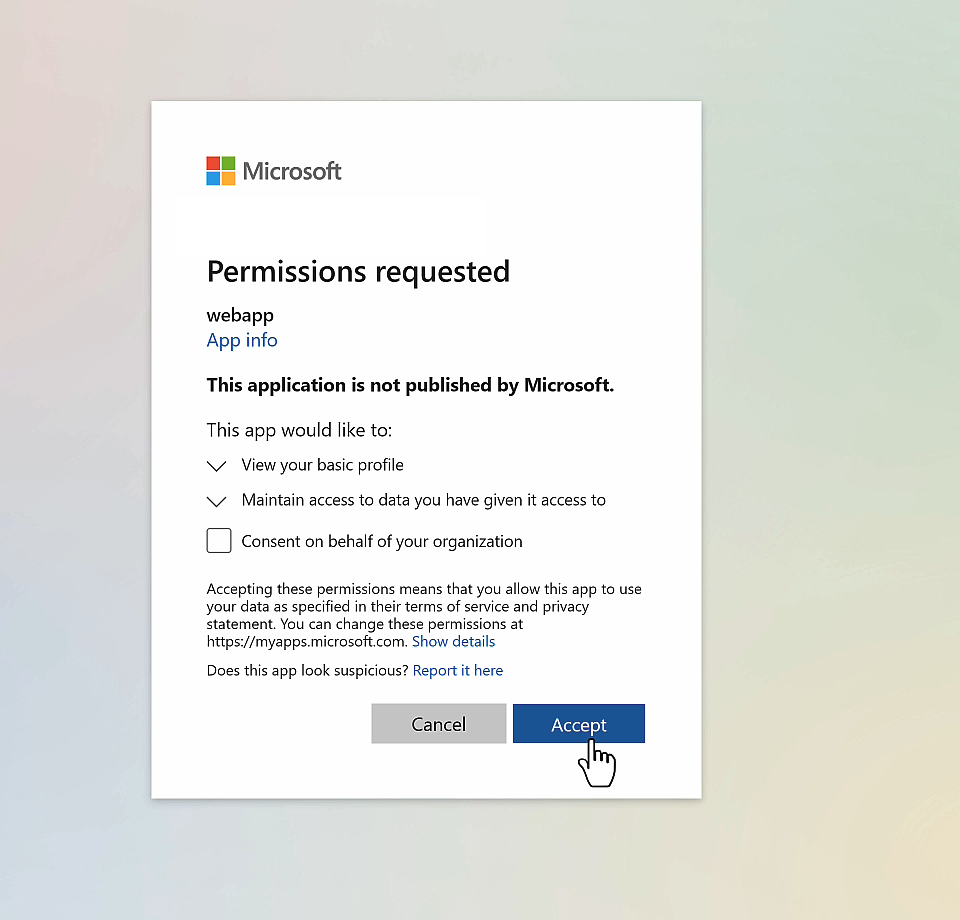
</ul>- When you run your application, it will prompt for login as shown below. After successful login, you will navigate to home page.
Best Practices for Secure Authentication with Entra ID
- Enforce MFA: Strengthen authentication by requiring additional verification methods like SMS codes or biometrics.
- Use Conditional Access: Create policies to limit access based on user role, device, or location.
- Monitor Authentication Events: Use Azure Monitor to track login attempts and identify anomalies.
Common Use Cases for Microsoft Entra ID Authentication
- Internal Employee Portals: Secure access to internal tools and resources.
- Customer-Facing Applications: Enable customers to sign in using social or Microsoft accounts.
- Partner Portals: Provide role-based access to third-party collaborators.
Conclusion
Microsoft Entra ID is a powerful tool for web app authentication, combining cutting-edge security features with developer-friendly integrations. By following best practices and leveraging its advanced capabilities, you can ensure your web applications are secure, scalable, and user-friendly.