



This blog will show how to set up and work with WebDriver BiDi (Bidirectional) for seamless browser interactions, complete with step-by-step code explanations.
With the latest evolution in WebDriver protocols, WebDriver Bidirectional (BiDi) is making interacting with modern browsers easier. BiDi enables real-time, bidirectional communication between the client and the browser, making it possible to capture events like network traffic, console logs, and more during test execution. In this, setup and coding for BiDi, provide insight into how this feature can streamline your automation process.
WebDriver BiDi
The traditional WebDriver protocol is unidirectional; it only allows requests to be sent from the client to the browser. With WebDriver BiDi, however, you gain two-way communication, allowing you to interact with browser events and states directly. This is particularly helpful for monitoring network requests, inspecting console errors, and improving observability in test runs.
Getting Started with WebDriver BiDi
Before diving into the code, let’s ensure the environment is ready:
- Install WebDriver: Update your Selenium version to the latest version that supports BiDi (Selenium 4.0 and above).
- Set Up a Compatible Browser: WebDriver BiDi currently works best with Chrome and Firefox.
Let’s move forward with setting up WebDriver BiDi for a test scenario.
Step 1: Initialize WebDriver BiDi in Selenium
To begin, we’ll import the necessary libraries and set up the WebDriver to work with WebDriver BiDi.
import org.openqa.selenium.WebDriver;
import org.openqa.selenium.chrome.ChromeDriver;
import org.openqa.selenium.devtools.DevTools;
import org.openqa.selenium.devtools.v115.network.Network;

public class WebDriverBiDiExample {
    public static void main(String[] args) {
        // Set the WebDriver path
        System.setProperty("webdriver.chrome.driver", "path/to/chromedriver");

        // Initialize WebDriver and DevTools
        WebDriver driver = new ChromeDriver();
        DevTools devTools = ((ChromeDriver) driver).getDevTools();

        // Open a DevTools session to start BiDi communication
        devTools.createSession();

        // Navigate to a test URL
        driver.get("https://example.com");
    }
}
Here, we set up the DevTools instance which enables BiDi functionality by allowing the creation of a session. This session is essential for the bidirectional communication channel between the driver and the browser.
Step 2: Capture Network Requests
BiDi lets you capture network requests and responses as they occur. This is useful for verifying API calls or tracking request details.
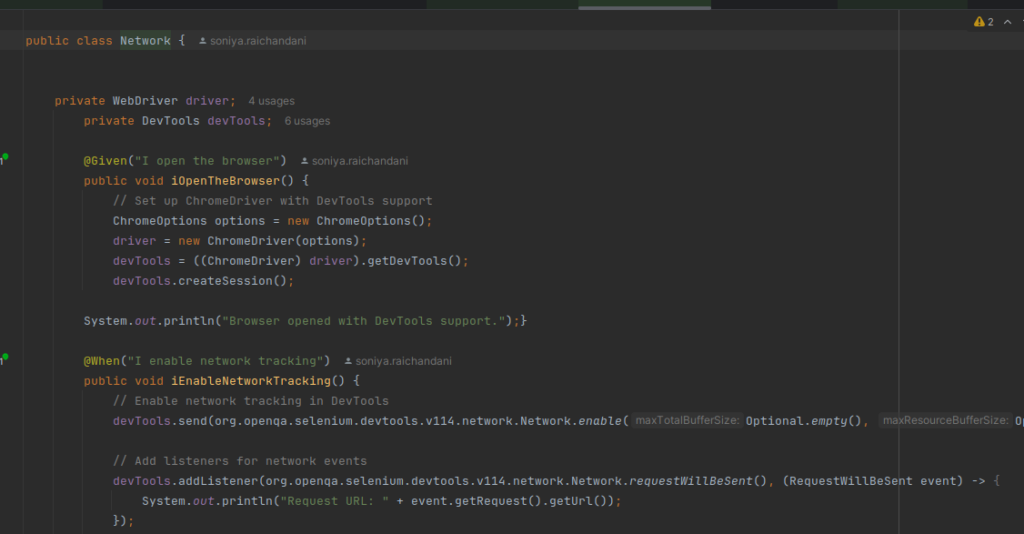
package stepDefintions;
import io.cucumber.java.en.Given;
import io.cucumber.java.en.Then;
import io.cucumber.java.en.When;
import org.openqa.selenium.WebDriver;
import org.openqa.selenium.chrome.ChromeDriver;
import org.openqa.selenium.chrome.ChromeOptions;
import org.openqa.selenium.devtools.DevTools;
import org.openqa.selenium.devtools.v114.log.Log;
import org.openqa.selenium.devtools.v114.network.model.RequestWillBeSent;
import org.openqa.selenium.devtools.v114.network.model.ResponseReceived;
import java.util.Optional;

public class Network {
private WebDriver driver;
        private DevTools devTools;

        @Given("I open the browser")
        public void iOpenTheBrowser() {
            // Set up ChromeDriver with DevTools support
            ChromeOptions options = new ChromeOptions();
            driver = new ChromeDriver(options);
            devTools = ((ChromeDriver) driver).getDevTools();
            devTools.createSession();
            System.out.println("Browser opened with DevTools support.");}

        @When("I enable network tracking")
        public void iEnableNetworkTracking() {
            // Enable network tracking in DevTools
            devTools.send(org.openqa.selenium.devtools.v114.network.Network.enable(Optional.empty(), Optional.empty(), Optional.empty()));
// Add listeners for network events
            devTools.addListener(org.openqa.selenium.devtools.v114.network.Network.requestWillBeSent(), (RequestWillBeSent event) -> {
                System.out.println("Request URL: " + event.getRequest().getUrl());
            });

            devTools.addListener(org.openqa.selenium.devtools.v114.network.Network.responseReceived(), (ResponseReceived event) -> {
                System.out.println("Response URL: " + event.getResponse().getUrl());
                System.out.println("Response Status: " + event.getResponse().getStatus());
            });
            devTools.addListener(Log.entryAdded(), logEntry -> {
                System.out.println("Log Entry: " + logEntry.getText());
            });
System.out.println("Network tracking enabled.");
        }

        @When("I navigate to websites")
        public void iNavigateToWebsites() {
            // Navigate to the specified URL
            driver.get("https://www.flipkart.com/");
            System.out.println("Navigated to url");
        }

        @Then("I should see the network logs")
        public void iShouldSeeTheNetworkLogs() {
            // Wait for a short duration to capture network traffic
//            try {
//                Thread.sleep(3000);
//            } catch (InterruptedException e) {
//                e.printStackTrace();
//            }

            // Close the browser after capturing logs
            driver.quit();
        }
    }
In this code, we enable network tracking with Network. enable(). The request will be send event captures details of each network request, such as the URL and method. By adding a listener, you can access the network request data in real time.
Step 3: Log Console Errors
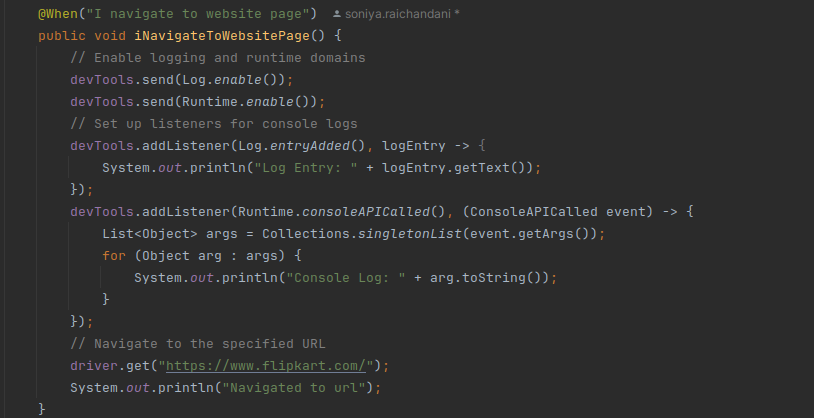
Another powerful feature of BiDi is the ability to log console messages from the browser. This is particularly helpful for capturing JavaScript errors and warnings directly in the test output.
 devTools.send(Log.enable());
            devTools.send(Runtime.enable());
            // Set up listeners for console logs
            devTools.addListener(Log.entryAdded(), logEntry -> {
                System.out.println("Log Entry: " + logEntry.getText());
            });
            devTools.addListener(Runtime.consoleAPICalled(), (ConsoleAPICalled event) -> {
                List<Object> args = Collections.singletonList(event.getArgs());
                for (Object arg : args) {
                    System.out.println("Console Log: " + arg.toString());
                }
            });
Here, we enable the Log domain to capture browser console logs. Using Log.entryAdded(), we can capture each console message, including errors, warnings, and informational messages, and print their details to the console
Step 4: Monitor Browser Events and Capture Exceptions
With WebDriver BiDi, you can monitor various browser events. For instance, you can track uncaught exceptions, helping you diagnose test failures due to unexpected JavaScript errors.
import org.openqa.selenium.devtools.v115.runtime.Runtime;

devTools.send(Runtime.enable());

devTools.addListener(Runtime.exceptionThrown(), exception -> {
    System.out.println("Exception Text: " + exception.getExceptionDetails().getText());
    System.out.println("Exception URL: " + exception.getExceptionDetails().getUrl());
});
In this example, we use Runtime. enable() to capture runtime events and listen for any exceptions thrown during the test run. By tracking these, you gain more visibility into JavaScript-related issues that could affect your tests.
Step 5: Cleanup and Close the Session
After completing your test, closing the WebDriver BiDi session and cleaning up resources is essential.
// Close the browser session
driver.quit();
Always ensure that the WebDriver session is properly closed after testing to avoid memory leaks or lingering processes.
Sample Output
As you run your test with the code above, you’ll see outputs in your console such as:
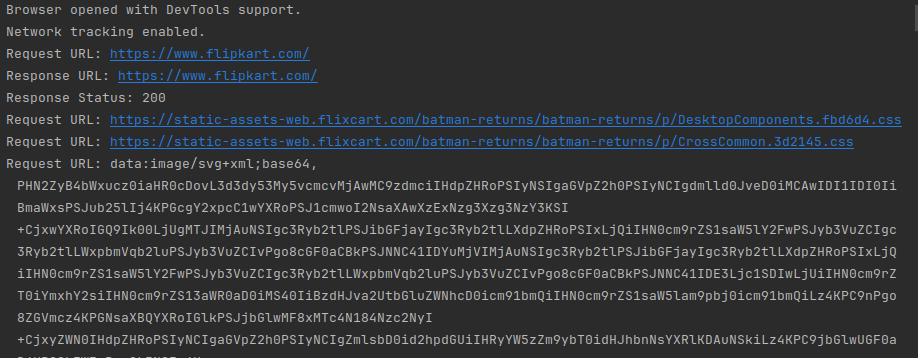
This output shows that we’re successfully capturing network requests, console logs, and uncaught exceptions, providing a clear picture of what’s happening in the browser during the test.
Conclusion
It is a powerful addition to the automation, enabling enhanced browser interaction and insight. By capturing network requests, console errors, and runtime exceptions, we can diagnose and debug browser-based issues much more effectively than with traditional WebDriver.
Using this setup, you can harness WebDriver BiDi’s real-time communication capabilities to optimize test observability, making it easier to detect and fix issues before they reach production.
References
https://www.lambdatest.com/support/docs/selenium-bidi-integration