


Introduction
Overview of Databricks Notebook
Databricks Notebook offers a collaborative platform for data workflow, and supports a multi-language environment for interactive data analysis, exploration, and machine learning, with support for documentation, and in-built version control.
Databricks notebook provides real-time co-authoring in multiple languages means two or more engineers can work at the same time on the same notebook.
Purpose of Databricks Notebook
1. Unified Collaboration: Databricks Notebooks provide a collaborative platform for data scientists, analysts, and engineers to work together seamlessly.
2. Multi-Language Support: Supporting Python, Scala, SQL, and R, Notebooks allow users to choose the most suitable language for their tasks.
3. Data Visualization: Offering tools for creating interactive visualizations, Notebooks facilitate insightful reporting and data representation.
4. Version Control Integration: Integration with version control systems enables tracking changes and maintaining a history of the work.
5. Rich Documentation: Incorporating Markdown cells and notebooks facilitates rich text formatting for comprehensive documentation of analyses.

Getting Started with Databricks Notebook
Creating a New Notebook

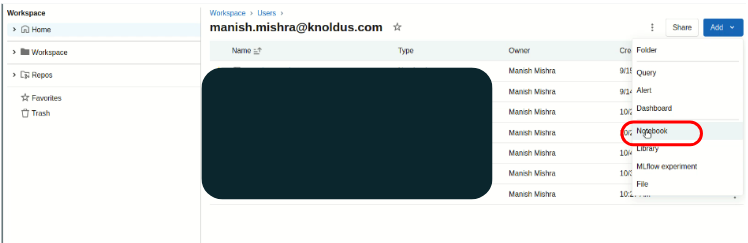
1. Login to Databricks account. On the Databricks UI Dashboard, Switch to Data Science & Engineering.
2. There are two ways to create the notebook:
- Navigate to Workspace > user. Under user click on add and select the notebook option.
- Another option to create a notebook is to click on New and select the notebook option from the list.
Notebook Interface Overview
In this part, we are going to discuss about the notebook user interface such as renaming the notebook, attaching cluster to the notebook, supported languages, markdown, etc.

1. To give the name or rename a notebook. Open a notebook and in the top-left click on the notebook name and from there you can change the name
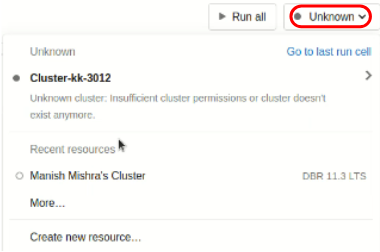
2. To attach the cluster from the notebook create a compute & attach it by selecting the compute.
Click to Know: How to create an all-purpose compute.

3. Databricks notebook supports four languages they are Python, Scala, SQL, and R.
You can select the language to support entirely in the notebook from the top-left just next to the notebook name.
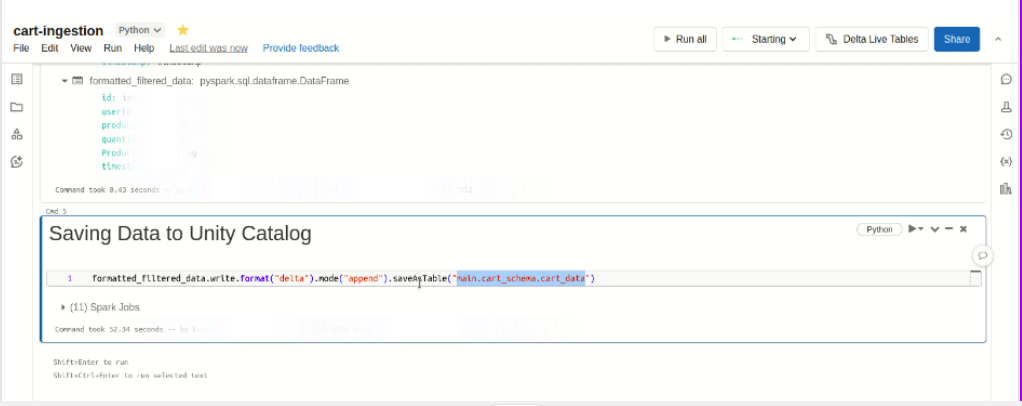
4. By clicking on Run All it will run all the code of the notebook.

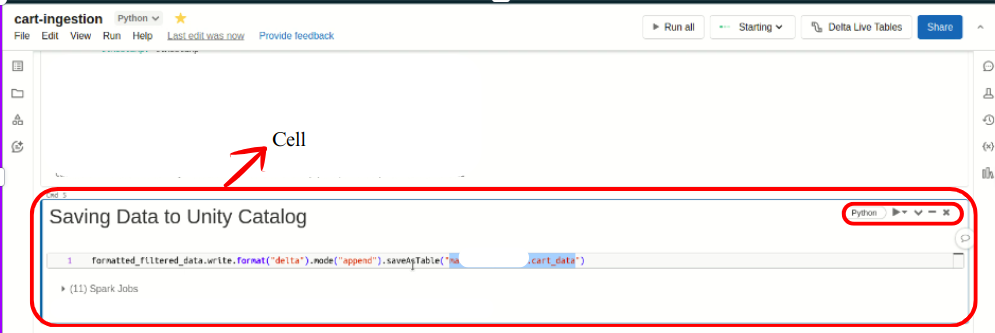
5. This is the cell where we write the code and from one cell we can perform different below activities.
- To create visulaisation.
- To change the language.
- To run a single cell.
- It supports magic commands such as %python, %scala, %sql, %r, and %md.
- It also supports markdown for good documentation by using %md as the first line of your cell.
- It also supports many features as well as.
6. You can share the notebook with other users by clicking on the Share option.

Databricks Notebook Dashboard
Conclusion
Databricks Notebook is a powerful collaborative tool that unifies data workflows, supports multiple languages, and provides robust features for visualization, documentation, and version control. With real-time co-authoring, it enhances teamwork, making it a versatile platform for data scientists and engineers to efficiently analyze and explore data. Refer to this for more information.
Related Article

Delta Time Travel

Data Quality Check on Databricks Unity Catalog

Databricks All-Purpose Cluster